
Livraison le jour même ou le lendemain

Qualité garantie

Débloquez vos offres de bienvenue: Livraison GRATUITE | Jusqu'à -80 % | 30 jours d'essai gratuits à JoyPlus
Téléchargez l'application
A wireless mouse can make everyday life easier for students, home workers and professionals who are often on the move. It frees up desk space, slips easily into a laptop bag and avoids tangled cables. However, some purchases quickly disappoint because compatibility was not checked properly, battery life is inconvenient or the shape is uncomfortable.
Before choosing a wireless USB mouse, take the time to distinguish genuinely useful features from far less meaningful marketing claims.
A high DPI count does not automatically guarantee greater comfort. For office work, web browsing and everyday software, an optical mouse set to around 1,000 to 1,600 DPI will suit many users. The most important factors are smooth cursor movement and a sufficiently precise scroll wheel.
Models offering several sensitivity levels can nevertheless be useful if you switch between image editing, browsing and working across multiple screens.
A 2.4 GHz mouse with a USB receiver usually connects by inserting a small adapter into the computer’s port. This is a simple solution, but it takes up a USB-A port. Check which connectors are available on your PC or Mac, especially if you use a recent laptop that mainly has USB-C ports.
Bluetooth eliminates the need for a receiver, but not every model includes it. The product description should also specify compatibility with Windows, macOS or Linux.
An ergonomic mouse with a thumb rest can be comfortable during long sessions, but a bulky model is less convenient to carry in a bag. Conversely, a compact mouse can go almost anywhere, although it may provide less support for larger hands.
If several people use the same workstation, an ambidextrous mouse makes it easier for right- and left-handed users to share it. In a library or shared workspace, a silent model will also reduce clicking noise, provided the manufacturer clearly states that this feature is included.
For straightforward setup, look for the terms mouse with USB receiver, 2.4 GHz and automatic installation. Some models work without software, while others require an app to customise the buttons or pair multiple devices.
A compatible Logitech Unifying receiver can connect up to six supported Logitech devices through a single USB port. This is useful if you already use a wireless keyboard and mouse from the same range. However, check the model’s exact compatibility before placing your order.
Mice with replaceable batteries avoid the waiting time associated with recharging. A claimed battery life of several months means fewer replacements, but this depends on how often the mouse is used, its sleep mode and the quality of the batteries. A rechargeable mouse reduces battery purchases, provided you remember to recharge it regularly.
Also check whether it has an on/off switch and an automatic sleep mode. These features can help reduce power consumption when the mouse is left in a bag or on a desk.
An optical sensor is suitable for most desks, tables and mouse mats. The statement ‘works on almost all surfaces’ does not mean tracking will be perfectly stable on glass, highly glossy or uneven surfaces. A mouse mat is still useful for more consistent tracking.
Also consider the position of the buttons, the width of the thumb rest and the weight. For mobile use, a compact design and a receiver that can be stored in the slot provided underneath the mouse are particularly useful details.
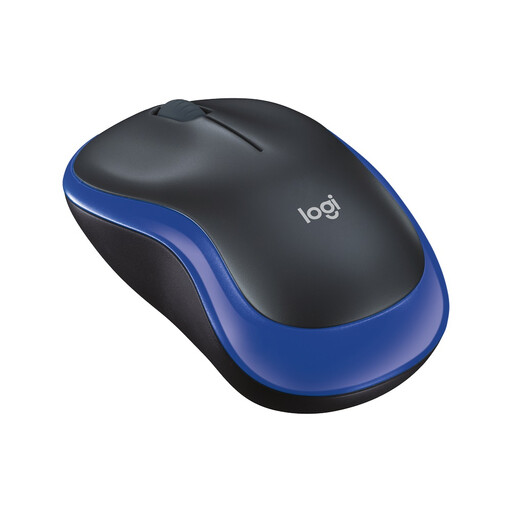
Why this choice suits this user profile : Its compact design and USB receiver make it a good first mouse for a family computer, a student PC or a laptop.
The product description states that it offers automatic connection without additional software and runs on an AA battery, reducing the number of setup steps.
Optical sensor, line-by-line scrolling and claimed battery life of up to 12 months thanks to automatic sleep mode.
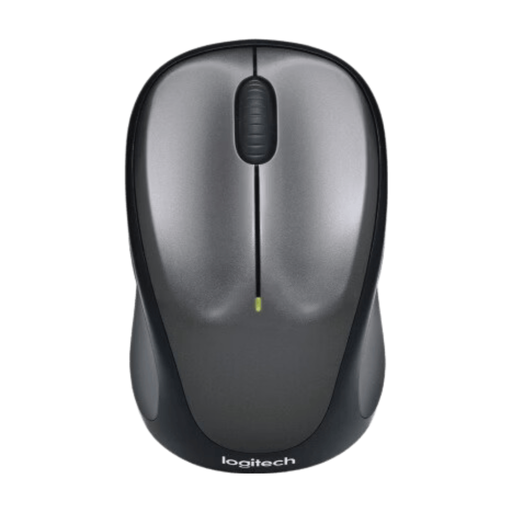
Why this choice suits this user profile : Its compact shape, ambidextrous design and Logitech Unifying receiver are ideal for desks where several devices need to share a single port.
The stated compatibility covers Windows, macOS and Linux, while the compact design makes it easy to carry and use in a limited space.
Unifying receiver, optical sensor and claimed battery life of 12 months according to the product description.
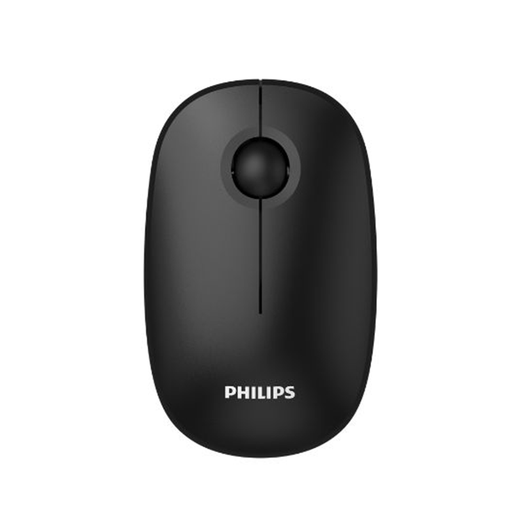
Why this choice suits this user profile : This model is designed for people working in a shared environment who want a silent mouse with a stated sensitivity of 1,600 DPI.
The product description clearly highlights silent clicks, a 2.4 GHz connection and a USB receiver : three points to check before buying.
Claimed silent clicks, optical sensor, stated resolution of 1,600 DPI and 2.4 GHz wireless connection.
We have put together a comprehensive, real-time updated list of products that meet these demanding selection criteria and European safety regulations.
Batteries and electrical equipment must be taken to the designated collection points, in accordance with local regulations on waste electrical and electronic equipment.
Plug in the USB receiver, switch on the mouse and wait for the system to detect it. Many models offer automatic installation without a driver. On a Mac without a USB-A port, a compatible adapter may be required.
This depends on the build quality, frequency of use, knocks and the condition of the buttons. A well-maintained mouse carried in a case can remain functional for several years. Battery life should not be confused with the device’s overall lifespan.
A battery-powered mouse requires periodic replacements, while a rechargeable model requires regular charging cycles. Compare the purchase price, power type and your habits rather than relying solely on the advertised price.