
Livraison le jour même ou le lendemain

Qualité garantie

Débloquez vos offres de bienvenue: Livraison GRATUITE | Jusqu'à -80 % | 30 jours d'essai gratuits à JoyPlus
Téléchargez l'application
A wireless mouse can help keep your desk tidy, make studying easier and make travelling with a laptop more comfortable. However, some models quickly show their limitations: an unstable connection, noisy clicks, advertised battery life with no real detail, or a tiny USB receiver that is easy to lose. Price alone is not enough to distinguish between the different options.
Before you buy, focus on three essential criteria: the type of connection, the shape of the mouse, and the genuinely verifiable information about battery life and precision.
A USB wireless mouse generally works with a small receiver that plugs into your computer. 2.4 GHz technology often offers very straightforward set-up, but it occupies a USB-A port. Some newer laptops are limited to USB-C ports, so an adapter will be needed.
A Bluetooth mouse for PC connects directly to a compatible device, without a separate receiver. This is particularly convenient with a laptop, provided you check Bluetooth compatibility and the pairing process. Please note that a model supplied with a receiver is not necessarily Bluetooth-compatible.
An ergonomic mouse will not automatically suit every hand. A curved shape can be comfortable with a palm grip, but less suitable for smaller hands or frequent travel. Check the dimensions, weight, thumb position and whether it can be used left-handed.
An ambidextrous mouse offers greater flexibility, especially when it is used by several people. On the other hand, it may provide less lateral support than a model specifically designed for the right or left hand.
The term ‘long battery life’ depends on many factors: battery type, frequency of use, sensor activity and the length of standby periods. Battery life advertised as ‘up to 12 months’ is a maximum figure measured under certain conditions, not a guaranteed duration for every user.
Also check whether the battery is included, whether it can be replaced and whether the mouse has an on/off switch.
For standard office use, a 2.4 GHz mouse with a nano receiver is often very practical: you can usually just plug it in and use it, without installing any software. Some models claim a range of around 10 metres, but this can vary depending on obstacles and interference.
Also check compatibility with your operating system: Windows, macOS, ChromeOS or Linux. On a work computer, make sure your organisation’s IT policy allows the use of a USB peripheral.
An optical mouse tracks your movements using a sensor that analyses the surface beneath it. A resolution of 1,000 or 1,600 DPI is generally sufficient for browsing, working and studying. Having several adjustable levels can nevertheless be useful when switching from precise movement to fast cursor movement.
The DPI count alone is not enough to assess a mouse’s quality. The desk surface, sensor consistency and connection stability also play a part in everyday comfort.
A silent mouse can significantly reduce disruption in a shared space, library or during a video call. However, the term ‘silent’ mainly refers to the sound of the clicks, depending on the product’s design: do not expect it to be completely noiseless.
To help it last, clean it with a soft, dry cloth, avoid liquids and store the receiver somewhere safe when carrying the mouse.
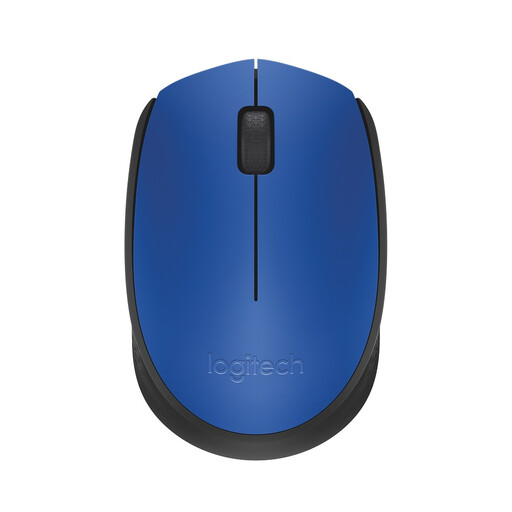
Why this choice suits this profile : Its compact design and USB receiver make it a good first PC mouse, a practical companion for a laptop or a suitable model for a study area.
The product listing states a range of up to 10 metres and an ambidextrous design, two features that help avoid unpleasant surprises when using the mouse.
Optical sensor, line-by-line scrolling and stated compatibility with Windows, macOS, ChromeOS and Linux.
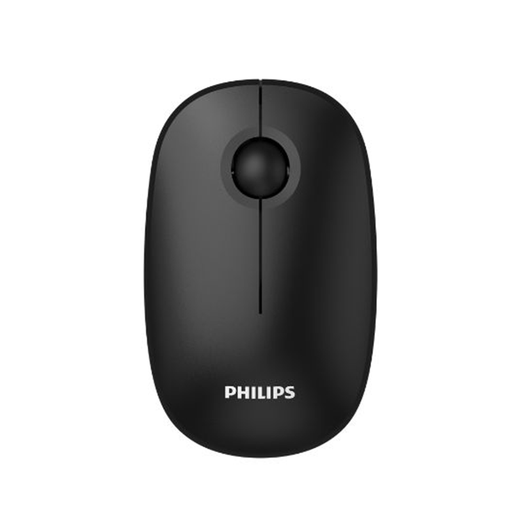
Why this choice suits this profile : Users looking for a more refined finish and a discreet office experience may want to consider this model.
The product listing mentions silent clicks, a 2.4 GHz connection and a USB receiver: features worth checking before choosing a quiet mouse.
Stated resolution of 1,600 DPI, optical sensor and a design presented as silent.
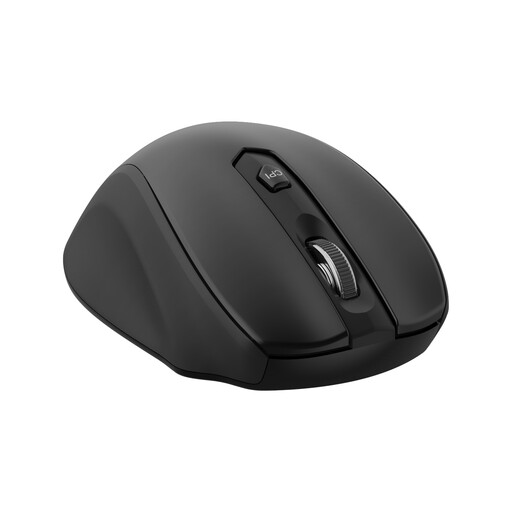
Why this choice suits this profile : Users who switch between office work, browsing and travel will appreciate its sensitivity settings and side buttons.
The five DPI levels let you adjust the cursor speed for each task, rather than being limited to a fixed sensitivity.
2.4 GHz connection, stated range of up to 10 metres, six buttons and settings from 800 to 2,400 DPI.
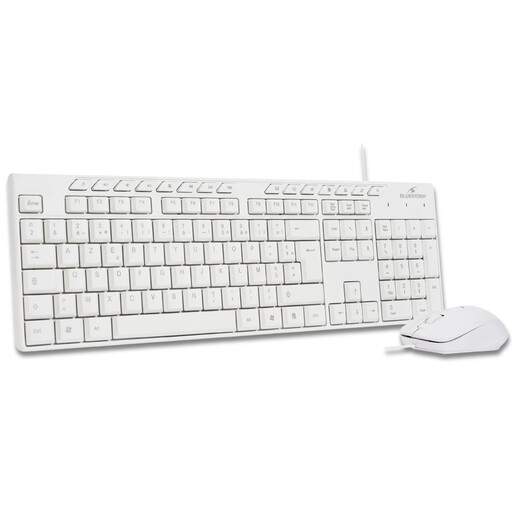
Why this choice suits this profile : This kit meets the needs of a fixed workstation equipped with both a mouse and a keyboard featuring a French layout.
The keyboard and mouse share a single nano receiver, while the French AZERTY layout avoids a configuration that is poorly suited to local typing habits.
2.4 GHz technology, driver-free installation and a stated range of around 10 metres.
We have put together a complete, real-time updated selection of products that meet these strict criteria, as well as European safety regulations.
Plug the receiver into a USB-A port, insert the battery if necessary, then switch on the mouse. Many 2.4 GHz models work straight away, without any additional driver. If the computer does not detect the device, try another USB port and check the battery and the position of the switch.
Battery life depends on the model and how you use it. Some Logitech mice claim up to 12 months from a single battery, while others include a standby mode or a switch to limit power consumption. If the mouse will remain unused for a long period, remove its battery to reduce the risk of leakage.
Yes, provided that the computer has a port compatible with the receiver or the necessary Bluetooth connectivity. On a slim device equipped only with USB-C ports, check whether an adapter is included or choose a compatible Bluetooth mouse instead. When travelling, also remember to store the receiver with the mouse to avoid losing it.