
Livraison le jour même ou le lendemain

Qualité garantie

Débloquez vos offres de bienvenue: Livraison GRATUITE | Jusqu'à -80 % | 30 jours d'essai gratuits à JoyPlus
Téléchargez l'application
Sleekness and portability are the hallmarks of modern laptops, whether they're MacBooks or PCs. The trade-off? This race for thinness often comes at the expense of connectivity. Juggling one or two measly USB-C ports to connect a monitor, mouse, keyboard, and charger has become a daily headache for many professionals, creatives, and remote workers.
The solution? A USB-C hub, also known as a multiport adapter. This guide is designed to help you navigate the jungle of available models and choose the one that perfectly meets your needs, without drowning you in technical jargon.
Before diving into our selection, let's review the essential criteria to ensure you make the right choice.
This is the number one criterion. There's no point in paying for ports you'll never use.
The Power Delivery (PD) feature allows you to charge your laptop through the hub. The principle is simple: you plug your PC's USB-C charger into the hub, and it powers both your machine and the connected peripherals. Be sure to check the maximum power accepted (in watts, W). While 60W is often enough for ultraportables, more power-hungry machines like a 16-inch MacBook Pro will require 85W or more for efficient charging.
A compact, lightweight hub is the perfect companion for working on the go and for hybrid work. It slips easily into a laptop bag. In contrast, a USB-C docking station (or dock), which is more comprehensive and bulkier, is designed for a stationary workstation. It offers much richer connectivity and transforms your laptop into a true desktop powerhouse once connected.
We have selected three standout models, each tailored to a specific user profile.
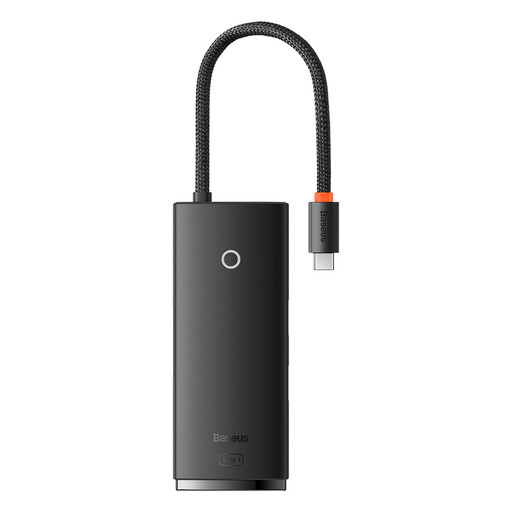
Why it stands out: This Baseus hub offers an excellent balance of essential features, a compact design, and an affordable price. It gets straight to the point by covering the most common needs without being cluttered with superfluous ports. The ideal travel companion.
Advantages:
Who is it for? Mobile professionals, students, and anyone looking for a simple and effective solution to expand the connectivity of their laptop or tablet for daily use.
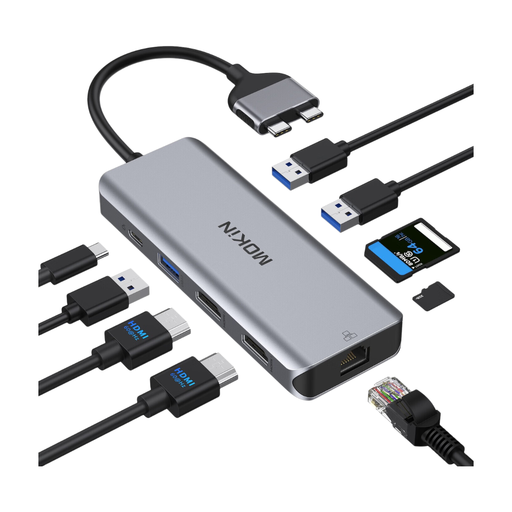
Why it stands out: Specifically designed for MacBook Pro and Air models with two adjacent USB-C ports, this dock transforms your machine into a true workstation. Its key feature: the ability to drive a dual-screen setup.
Advantages:
Who is it for? Creatives and power users (developers, graphic designers, video editors) on a compatible MacBook Pro or Air (Intel, M Pro, or M Max chips). Warning: As the manufacturer specifies, the standard Apple M1, M2, and M3 chips do not natively support dual external displays. This hub cannot bypass this hardware limitation; it won't work miracles!
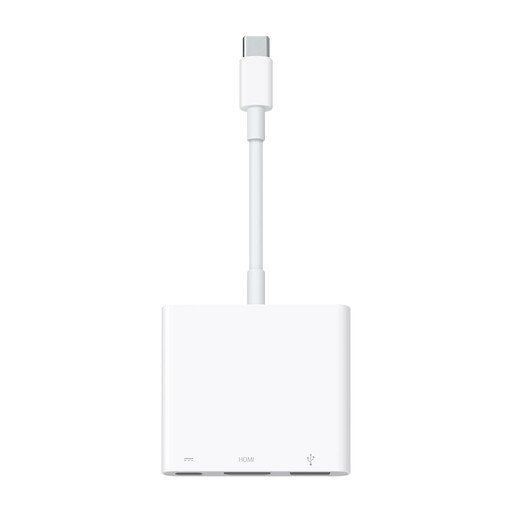
Why it stands out: As an official Apple product, this adapter is a guarantee of compatibility and reliability with the brand's devices. It sticks to the essentials, with Apple's renowned build quality and, most importantly, support for 4K at a higher refresh rate.
Advantages:
Who is it for? Fans of the Apple ecosystem who prioritize simplicity, display performance (the 60Hz makes a difference), and the peace of mind that comes with an official accessory, whether for a professional presentation or connecting their machine to a TV.
Our selection covers the most common use cases, but the market for adapters is vast. If you're looking for a different port configuration (more USB-A ports, a VGA output for an old projector, etc.), feel free to explore our full range of USB hubs and converters.
1. What's the difference between a USB-C hub and a docking station?
A hub is typically compact, powered by the computer's port, and designed for mobility. A docking station (dock) is bulkier, has its own AC power supply, and offers much richer connectivity. It's designed for a stationary desk to connect a multitude of peripherals in a single step.
2. My USB-C hub gets hot. Is this normal?
Yes, it's completely normal for it to get moderately warm. Data transfer, video signal conversion, and especially Power Delivery (PD) charging generate heat. As long as the casing is warm to the touch but not so hot that you can't hold it, there's no cause for concern. Just make sure to leave it in a reasonably well-ventilated area.
3. Is an Ethernet port on a hub really necessary?