
Livraison le jour même ou le lendemain

Qualité garantie

Débloquez vos offres de bienvenue: Livraison GRATUITE | Jusqu'à -80 % | 30 jours d'essai gratuits à JoyPlus
Téléchargez l'application
MacBook Pro and Air models are fantastic machines, but their minimalist connectivity can quickly become a daily hassle. The solution? A USB-C docking station. The problem? The market is a jungle of models with often vague marketing promises. Choosing the wrong one can lead to compatibility issues, sluggish charging, and even disappointing performance.
Our mission is to help you cut through the noise. This guide breaks down the essential points for choosing a docking station that is genuinely suited to your MacBook and your needs, based on concrete technical criteria, not marketing jargon.
Before you even start comparing spec sheets, it's crucial to know the classic mistakes that lead to buyer's remorse.
To make the right choice, focus on these three technical specifications. They are non-negotiable.
This is the number one criterion. Before you even count the HDMI or DisplayPort connections, identify the chip in your Mac:
For the station to be able to power and charge your Mac simultaneously, the power it delivers is a key factor.
Beyond displays, make a list of the ports that are truly indispensable for your daily use.
Here is our selection of docking stations for 2026, chosen for different user profiles while keeping in mind the pitfalls and criteria we've just discussed.
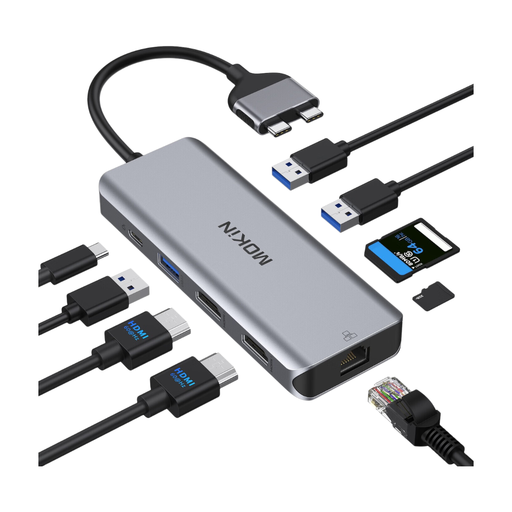
Why we chose it: Specifically designed for MacBook Pro/Air models with two side-by-side USB-C ports, this station transforms your laptop into a true desktop workstation. Ideal for developers, designers, or video editors using an M Pro or M Max chip.
The spec sheet clearly states support for dual extended displays on M Pro/Max chips, avoiding any confusion for owners of Macs with a base M chip. Its 100W PD charging is calibrated for Pro models.
An all-in-one solution that makes no compromises: 2x 4K HDMI, a Gigabit Ethernet port, SD/TF card readers, USB 3.0 ports, and 100W PD charging. The most comprehensive connectivity for maximum productivity.
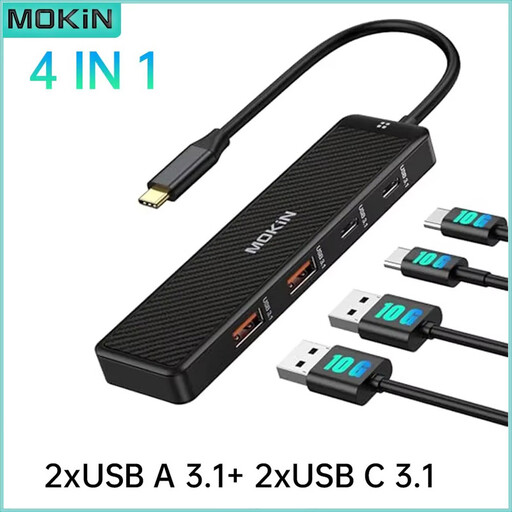
Why we chose it: Perfect for the student or mobile professional who just needs to connect a few peripherals (hard drive, flash drive, mouse) without the bulk of a full docking station. It focuses on the essentials: adding fast data ports.
This hub doesn't promise display support or high-power charging. Its mission is simple and clear: expand USB connectivity, and do it well, with fast ports (10 Gbps USB 3.1).
Its high-speed (10 Gbps) transfer rate is perfect for external SSDs. Compact and specialized, it's the ideal travel companion—reliable and high-performance.
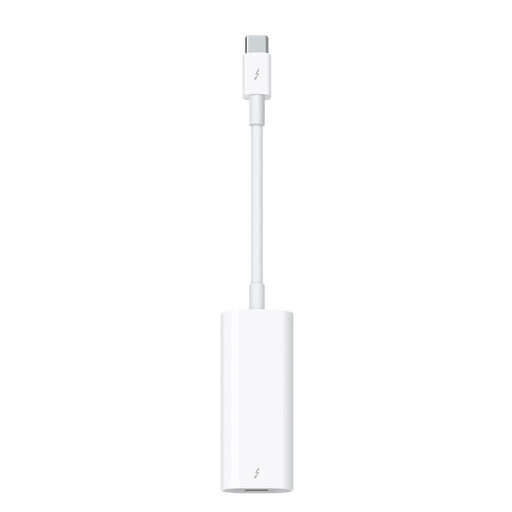
Why we chose it: This official adapter caters to a niche audience: professionals who own expensive Thunderbolt 2 peripherals (hard drives, Apple Thunderbolt Displays, audio interfaces) and want to continue using them with a modern Mac that has Thunderbolt 3/4 (USB-C) ports.
This is not a multiport hub, but a simple protocol converter. It solves only one compatibility problem, but it does so perfectly, without the performance drops you might fear from an uncertified third-party adapter.
Compatibility and reliability are guaranteed by Apple. It's the assurance that your old Thunderbolt 2 peripherals will work at full speed on your new Mac, allowing you to get the most out of your investment.
We have put together a complete selection of products that meet our selection criteria and current safety standards.
1. Can a docking station damage my MacBook Pro? A quality docking station from a reputable brand that adheres to USB-C Power Delivery standards poses no risk to your machine. The danger primarily comes from cheap, "no-name" products with potentially faulty power management. Our advice: always power your dock with your Mac's original charger (or a quality, certified equivalent).
2. Why does my docking station only support one external monitor with my M2 MacBook Air? The problem isn't your docking station, but a hardware limitation of the Apple M2 chip (as well as the base M1/M3 chips). These processors can only manage a single external video stream. Even if your dock has two HDMI ports, the chip will only send a single signal, which will simply be duplicated on both monitors (mirror mode). To enjoy a true extended display setup on two screens, you will need a MacBook Pro with an M Pro, M Max, or M Ultra chip.
3. Do I need a Thunderbolt dock or is USB-C enough? It all depends on your needs. For the vast majority of users, a USB-C dock is more than sufficient: it can easily handle a 4K monitor, USB ports, Ethernet, and charging. A Thunderbolt dock is distinguished by its much higher bandwidth (40 Gbps versus 10 or 20 Gbps for USB-C). It becomes essential for very heavy-duty use cases: connecting two 4K monitors at 60Hz, daisy-chaining multiple Thunderbolt peripherals, or leveraging ultra-fast external SSDs for 8K video editing, for example.