
Livraison le jour même ou le lendemain

Qualité garantie

Débloquez vos offres de bienvenue: Livraison GRATUITE | Jusqu'à -80 % | 30 jours d'essai gratuits à JoyPlus
Téléchargez l'application
MacBooks, ultrabooks... our laptops are getting thinner and lighter all the time. The trade-off? Connectivity has been stripped down to the bare essentials, often leaving us with just one or two USB-C ports for everything. Connecting an external monitor, mouse, keyboard, and network cable simultaneously can become a real headache.
A USB-C docking station seems like the perfect solution, but the market is flooded with models making tempting promises that too often hide deal-breaking flaws. Before you invest, it's crucial to decode the marketing jargon to avoid turning a good investment into a source of frustration.
The 3 mistakes to avoid when choosing your docking station?:
To turn your laptop into a truly high-performance workstation, pay close attention to these three technical points. This will guarantee a future-proof purchase that's perfectly suited to your needs.
A 4K HDMI USB-C dock is an excellent choice for expanding your workspace. But be aware, display smoothness depends entirely on the refresh rate, measured in Hertz (Hz).
Always check this specification on the product's technical sheet. Its absence is often a red flag and usually hides a 30?Hz limitation.
The Power Delivery (PD) feature allows the docking station to charge your laptop through the same USB-C cable that connects it. For this to be truly effective, the power delivered by the PD port must match your machine's requirements.
The easiest way? Check the wattage of the power adapter that came with your computer to know the minimum requirement.
A good USB-C multiport adapter must cover all the needs of a modern workstation.
Rather than an endless list, we've chosen to highlight one product that checks all the boxes for a demanding user, based on the performance and versatility criteria we've just discussed.
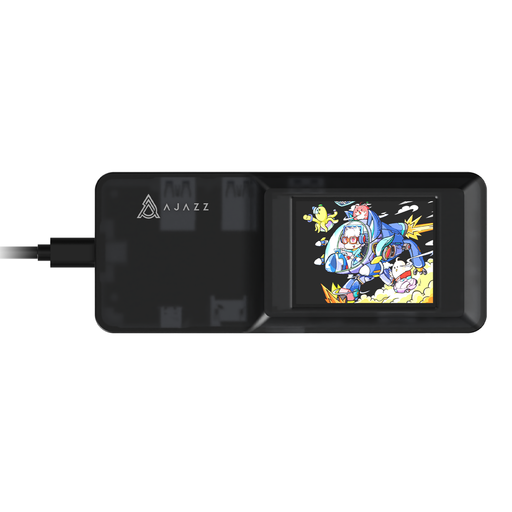
Why we chose it : This model is a perfect all-in-one solution for those who juggle demanding office tasks and creative projects. It transforms a simple laptop into a complete workstation, whether at home, in the office, or for a streaming session.
It includes up to 100W PD charging, capable of powering the most demanding laptops. Its 3 USB 3.0 ports ensure fast transfers, and its Ethernet port provides a reliable connection, thus avoiding bottlenecks.
This 8-in-1 USB-C hub combines a 4K HDMI output, SD/TF card readers, an Ethernet port, and multiple USB 3.0 ports. This versatility makes it an excellent choice to stop collecting adapters.
We have compiled a complete and up-to-date selection of products that meet our strict selection criteria and safety standards.
No, provided you choose a quality product that adheres to industry standards. A reputable model will include protections against overvoltage, overcurrent, and short circuits. Ensure the product complies with local regulations (like CE marking) and favour brands that are transparent about their power specifications.
The line is increasingly blurry, but traditionally, a laptop docking station is more comprehensive. It's designed to create a fixed workstation and usually includes an external power supply or powerful PD charging, multiple video outputs, and an Ethernet port. A hub, on the other hand, is often more compact, bus-powered (drawing power from the computer's port), and typically just adds a few USB ports or a card reader. The AJAZZ AKP01E model sits right at this intersection, offering the versatility of a dock in a compact hub format.
The vast majority of modern docking stations are "Plug and Play." They use standard drivers already built into operating systems like Windows, macOS, and Linux. In most cases, you don't need to install anything: just plug it in, and it works. Only in very rare cases, for advanced features (like complex multi-monitor setups), might you need to install a driver provided by the manufacturer.