
Livraison le jour même ou le lendemain

Qualité garantie

Débloquez vos offres de bienvenue: Livraison GRATUITE | Jusqu'à -80 % | 30 jours d'essai gratuits à JoyPlus
Téléchargez l'application
MacBooks, ultrabooks... our laptops are getting thinner and more powerful all the time. The downside? Connectivity has been stripped down to its bare essentials, often just one or two lonely USB-C ports. The obvious solution seems to be a USB-C dock or hub. But be warned: the market is a jungle of products with dazzling promises that quickly turn into a nightmare. To avoid buyer's remorse, learn how to sidestep the most common marketing traps.
Here are the 3 classic mistakes to avoid at all costs when choosing your multiport adapter:
Forget simply counting the ports. To make the right choice, focus on the technical specifications that are true game-changers for your laptop's connectivity.
Not all USB ports are created equal. Transfer speed is the name of the game, especially if you're juggling large files (videos, RAW photos, 3D projects).
If you plan to connect one or more monitors, the video output specs are the one thing you can't afford to overlook.
A good docking station should simplify your workspace, not complicate it.
Instead of an endless list, here are targeted solutions that meet specific needs, keeping in mind the traps and criteria we've just discussed.
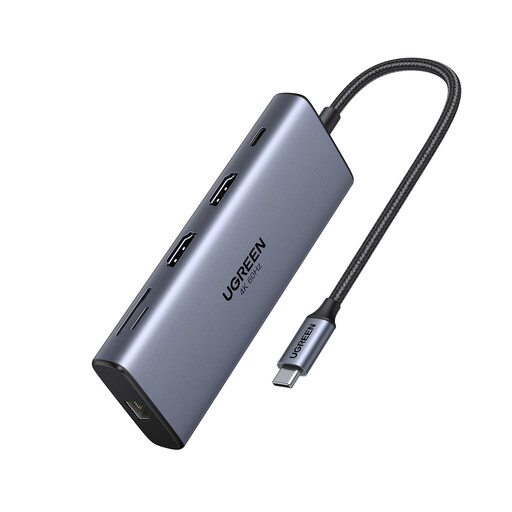
Why it's a great choice: Perfect for videographers, photographers, and graphic designers who juggle a multitude of peripherals and large files. It checks all the boxes: ultra-fast transfers and a high-resolution multi-screen setup, without compromise.
It knocks out misleading spec sheets with two HDMI ports that deliver true 4K at 60 Hz (even on macOS!). Its 10 Gbps USB-C and USB-A ports eliminate bottlenecks when transferring from an external SSD.
Comprehensive connectivity with 10 ports, including a Gigabit Ethernet port, SD/TF card readers, and up to 100W PD charging. Its aluminium chassis ensures good heat dissipation.
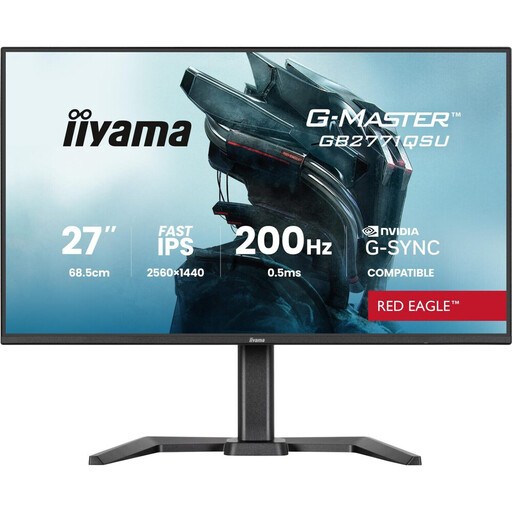
Why it's a great choice: A smart approach: integrating the hub directly into the monitor. It's the perfect solution for gamers and professionals who want a clean, high-performance setup, combining a cutting-edge display with connectivity that's always within reach.
It obliterates the risk of overheating by integrating the USB ports into the monitor's chassis, which is designed for optimal ventilation. It guarantees pure display performance (WQHD at 165 Hz) without any intermediary that could throttle the signal.
The winning combo: an excellent 27-inch Fast IPS PC monitor that also serves as a USB hub. Its height-adjustable, tiltable, and pivotable stand ensures perfect ergonomics for long gaming or work sessions.
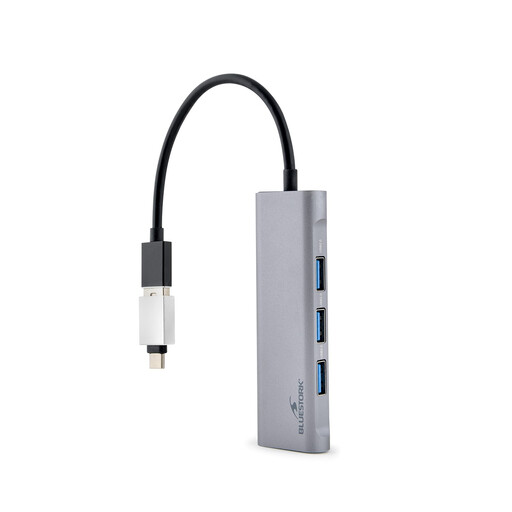
Why it's a great choice: Built for professionals on the go. Its compact size and feather-light weight make it the perfect travel companion for plugging in at a meeting, connecting a USB drive, or charging your PC in any situation.
By focusing on the essentials (HDMI, USB-A, PD), it avoids the overload and overheating typical of low-end "15-in-1" hubs. Its "plug-and-play" philosophy guarantees immediate, hassle-free compatibility.
Ultra-portable and universally compatible (Windows, macOS, iPadOS). Its aluminium alloy casing is a guarantee of durability and ensures adequate heat dissipation for such a small device.
Discover our full selection of expert-vetted products, all of which meet our selection criteria and European safety standards.
Absolutely not, provided you choose a model from a reputable, CE-certified brand. The real danger comes from low-end products that flout the USB Power Delivery (PD) standards. A poorly designed hub can indeed deliver an improper voltage or current. For peace of mind, stick to trusted brands and check for European safety certifications.
Yes, it's perfectly normal. A multiport adapter that's working hard (transferring data, displaying video, charging) will inevitably heat up. That's why good models have an aluminium casing, which helps dissipate this heat. However, if the hub becomes so hot you can't touch it or if it causes disconnects, it's a sign of abnormal overheating. This is likely a design flaw, so be wary.
99% of the time, no. Most USB-C hubs and docks are "plug-and-play": you plug it in, and it just works. It's that simple on both Windows and macOS. The only exception is certain highly specific docks that use DisplayLink technology to manage multiple screens on MacBooks (which are natively limited), which may require a driver installation. If you have complex display needs, this is something to check on the product page.