
Livraison le jour même ou le lendemain

Qualité garantie

Débloquez vos offres de bienvenue: Livraison GRATUITE | Jusqu'à -80 % | 30 jours d'essai gratuits à JoyPlus
Téléchargez l'application
From taking lecture notes to professional photo editing, the iPad is a master of all trades. But to unlock its full potential, an iPad stylus is an indispensable accessory. Faced with a jungle of Apple models and countless alternatives, it can be hard to know where to start. Don't panic! This guide is here to cut through the noise and help you choose the perfect companion for your tablet, based on your needs and budget.
Before you pull out your credit card, a few checks are in order to ensure your future stylus ticks all the boxes.
This is the non-negotiable starting point. A stylus for iPad Pro won't work on an old iPad mini, and vice versa. Before you finalize your purchase, meticulously check the list of compatible models on the stylus's product page. To find the exact model of your tablet, go to Settings > General > About.
Drawing, note-taking, simple navigation… Your intended use will dictate the must-have features:
Apple styluses guarantee a seamless experience, but their high price can be eye-watering. Fortunately, a well-chosen Apple Pencil alternative can offer excellent value for money. By providing the essentials (palm rejection, tilt sensitivity), an iPad-compatible stylus becomes a very smart solution for daily use or for those on a tight budget.
Enough theory, let's get practical. Here are three models that caught our attention, for distinct needs and budgets.
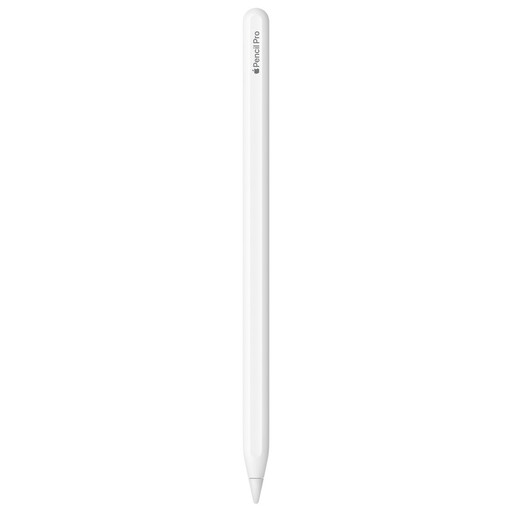
Why it stands out: This is the Formula 1 of styluses, designed for creatives who refuse to compromise on precision and interactive capabilities.
Pros:
Who is it for? Digital artists, illustrators, and creative professionals who work with a stylus for iPad Pro or a recent iPad Air (M2 models and later). It's the obvious choice for anyone seeking total fluidity and control in their favorite apps.
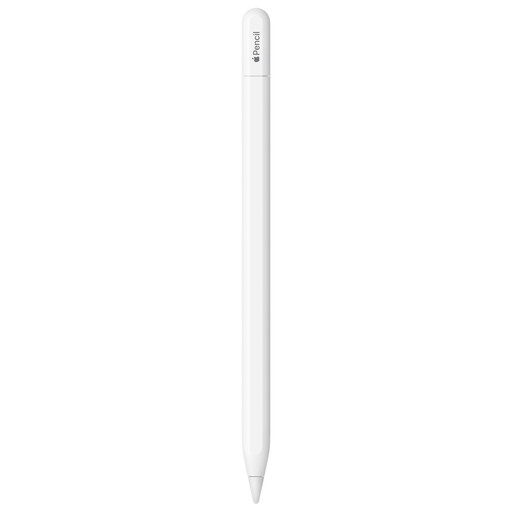
Why it stands out: This model makes the Apple Pencil experience more accessible. It retains the core elements that built the lineup's reputation—precision and responsiveness—with universal connectivity and a gentler price point.
Pros:
Who is it for? Students, professionals on the go, and anyone looking for a reliable tool for note-taking, annotating PDFs, or occasional sketching. A perfectly balanced option for owners of iPads with a USB-C port who want Apple quality without breaking the bank.
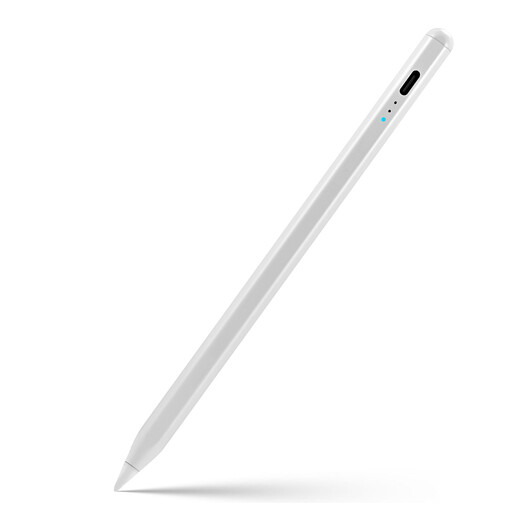
Why it stands out: This Apple Pencil alternative ticks all the essential boxes for an ultra-competitive price. It's a bestseller thanks to its unbeatable value for money.
Pros:
Who is it for? The smart choice for students, families, and anyone who wants an iPad-compatible stylus that gets the job done without spending a fortune. Perfect for everyday tasks, from grocery lists to kids' homework.
Our selection covers the most common uses, but your dream stylus might be hiding elsewhere. The market is full of hidden gems, whether you're looking for a tool for a niche creative need or simply want to compare other budget-friendly alternatives.
Discover our complete collection of portable drawing styluses and find that perfect fit.
To put it simply, the Pro is the "Formula 1" version for demanding creatives: advanced gestures (squeeze, roll), haptic feedback, pressure sensitivity, and wireless charging. The Apple Pencil (USB-C) is the "mainstream" version: it sticks to the essentials with impeccable precision and tilt sensitivity, but it charges via cable and forgoes the pro features. The choice comes down to maximum functionality versus a controlled budget.
Absolutely, and it's a very smart move for many users. An Apple Pencil alternative like the model from Rexsun often offers stunning value for money. These styluses include key features like palm rejection and tilt sensitivity. The main trade-off? The lack of pressure sensitivity and less deep integration into the Apple ecosystem. It's therefore an excellent choice if you're on a tight budget or if your use case (note-taking, navigation) doesn't justify the investment in a Pro model.
The number one rule: always consult the product page for the stylus you're interested in. Manufacturers list all compatible iPad models precisely (e.g., "iPad Pro 11-inch (4th generation)," "iPad Air (5th generation)"). To find your exact model name, go to the "Settings" app on your iPad, then to "General" and "About." This is the essential check to perform before you confirm your purchase.