
Livraison le jour même ou le lendemain

Qualité garantie

Débloquez vos offres de bienvenue: Livraison GRATUITE | Jusqu'à -80 % | 30 jours d'essai gratuits à JoyPlus
Téléchargez l'application
An internal M.2 NVMe SSD can reduce boot times, speed up application launches and make transferring large files easier. The problem is that technical specifications often list figures without clearly explaining compatibility requirements. The result? A PCIe 5.0 SSD installed on a PCIe 3.0 motherboard, insufficient capacity or poorly managed temperatures can turn an expensive purchase into a disappointing upgrade.
Here are the key points to check before choosing an SSD for PC, SSD for laptop, gaming SSD or storage compatible with the PlayStation 5.
Sequential transfer speeds, expressed in MB/s, generally refer to the maximum performance measured by the manufacturer under specific conditions. A PCIe 4.0 SSD installed in a PCIe 3.0 slot will therefore run at a lower speed. The same applies to a PCIe 5.0 SSD: to make full use of its potential, you need a motherboard with a PCIe Gen5 x4 slot.
Displayed speed is therefore not the only factor to consider. Start by checking which PCIe generation your computer supports.
The M.2 2280 SSD form factor measures approximately 22 × 80 mm. It is very common in desktop computers and many laptops, but not every device has a slot that is long enough. Some laptops use a shorter M.2 form factor, while others only accept M.2 SATA SSDs.
Check your motherboard or laptop manual before ordering. The presence of an M.2 connector does not automatically guarantee compatibility with an NVMe SSD.
During a long transfer, video rendering or an extended gaming session, a high-performance SSD can heat up quickly. Excessive temperatures can cause a temporary drop in transfer speeds, known as thermal throttling. A model with a heatsink may be worthwhile in a well-ventilated desktop PC, but make sure its thickness matches the available space.
On PS5, a heatsink is generally essential. Check its dimensions and the console’s requirements before installation.
A PCIe 4.0 SSD is generally backwards compatible with a PCIe 3.0 platform, but its performance will be limited by the older interface. Your motherboard’s technical specifications remain the best source for checking this.
An internal 1 TB SSD is enough for installing the operating system, applications and a selection of games. For a larger library or storing video files, an internal 2 TB SSD gives you more room to work with. Internal 4 TB SSD models are mainly aimed at users who accumulate games, video footage, photo libraries or virtual machines.
Keep some space free to maintain smooth data management. Also note that the advertised terabyte capacity may be slightly higher than the space actually available after formatting.
TBW, or total bytes written, refers to the amount of data the manufacturer estimates can be written to the SSD. It is not a guaranteed lifespan. Even a model with a high TBW rating should be backed up regularly to another storage device or a remote location.
In France and the European Union, the legal guarantee of conformity applies under the conditions set out in the Consumer Code. You should also check the commercial warranty stated on the product page.
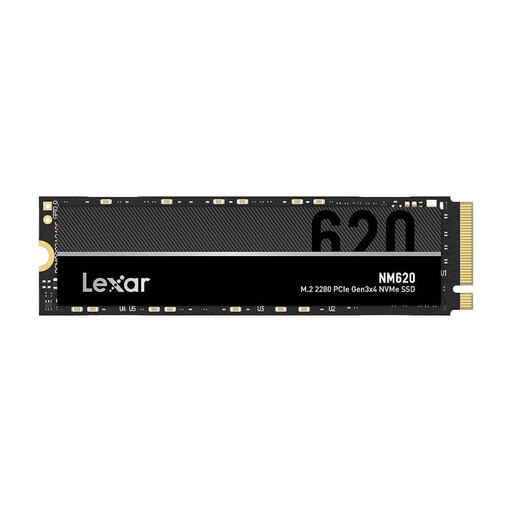
Why this choice suits this profile: With 512 GB of storage and a PCIe 3.0 x4 interface, this SSD is a worthwhile first upgrade for an NVMe-compatible computer. It provides enough space for your system, software and a few games.
It avoids paying for a PCIe generation that an older system cannot use, while retaining the M.2 2280 form factor.
PCIe Gen3x4, NVMe 1.4, 22 × 80 mm form factor and advertised read speeds of up to 3 500 MB/s.
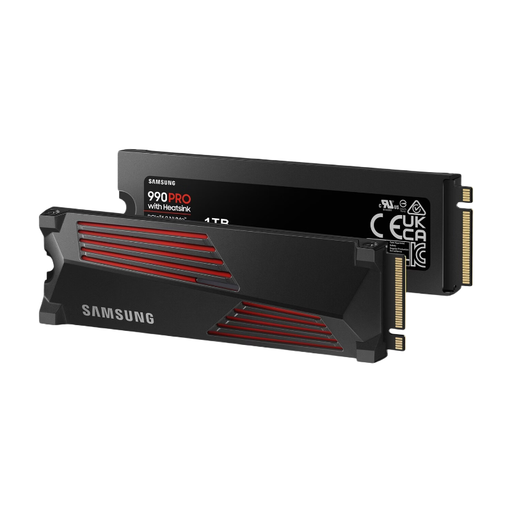
Why this choice suits this profile: This 1 TB internal SSD is equally suitable for gaming PCs and everyday machines, handling applications, game loading and file transfers with ease.
Its integrated heatsink helps reduce heat-related risks, provided you have adequate ventilation and a compatible PCIe 4.0 x4 slot.
M.2 2280 form factor, PCIe 4.0 x4 interface and advertised read speeds of up to 7 450 MB/s and write speeds of up to 6 900 MB/s.
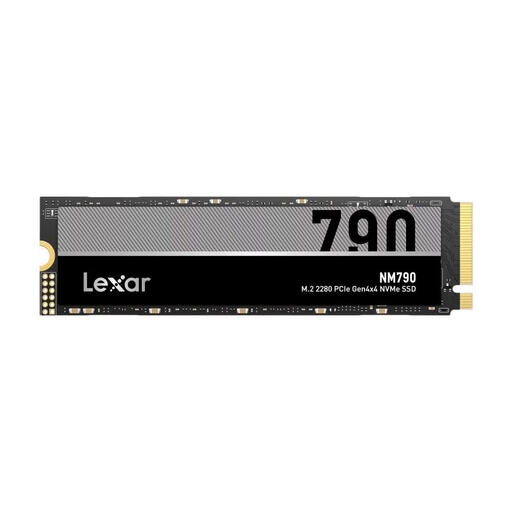
Why this choice suits this profile: Its 2 TB capacity provides plenty of room for video projects, game libraries and high-resolution files on a PC, compatible laptop or PS5.
Its single-sided design makes installation easier beneath a motherboard heatsink or in a PS5 M.2 slot, subject to checking the configuration first.
PCIe Gen4x4, advertised read speeds of up to 7 400 MB/s, write speeds of up to 6 500 MB/s and an advertised endurance rating of 1 500 TBW.
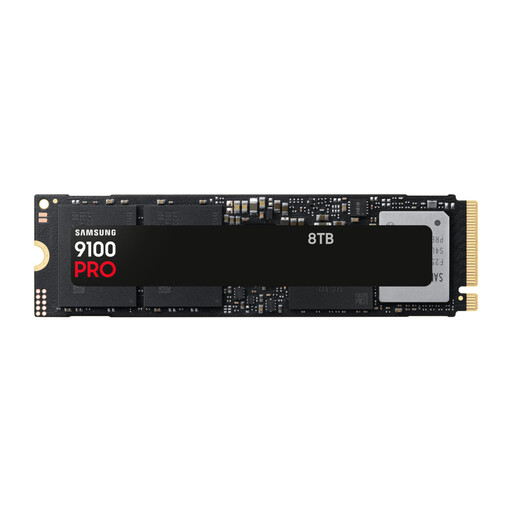
Why this choice suits this profile: This model is designed for newer systems capable of taking advantage of PCIe 5.0 x4, particularly for intensive transfers and demanding applications.
The heatsink is pre-installed, but check before fitting that its thickness is compatible with the slot and that the case has sufficient ventilation.
PCIe 5.0 x4 interface, M.2 2280 form factor and advertised read speeds of up to 14 700 MB/s and write speeds of up to 13 300 MB/s.
We have put together a complete, real-time updated selection of products that meet these demanding criteria, as well as European safety requirements.
Before handling the component, shut down the computer completely, unplug it and back up your important data. Insert the SSD into the M.2 connector at an angle of approximately 30 degrees, then secure it with the screw supplied with the motherboard or device.
When you restart the computer, the new drive may need to be initialised and formatted using Windows Disk Management, or the equivalent utility for your operating system. To migrate your system, use a compatible cloning solution and check that UEFI boot mode is configured correctly.
No. Some M.2 ports support SATA, others support PCIe NVMe, and some share their lanes with other connectors. Check your motherboard or laptop manual to find out which protocol is used, which form factor is accepted and which PCIe generation is available.
It is particularly useful during prolonged writes and sustained workloads. A PCIe 5.0 SSD can produce more heat than a PCIe 3.0 model. If your motherboard has an M.2 cover, check that it is making proper contact with the SSD and that the supplied heatsink does not create a clearance issue.
For your system and a few games, 1 TB may be enough. A 2 TB capacity offers greater comfort for large libraries. If you keep several video projects, demanding games and local archives, consider 4 TB. Also compare the price per terabyte and the warranty provided.