
Livraison le jour même ou le lendemain

Qualité garantie

Débloquez vos offres de bienvenue: Livraison GRATUITE | Jusqu'à -80 % | 30 jours d'essai gratuits à JoyPlus
Téléchargez l'application
A high-end wireless gaming mouse isn’t chosen solely on its DPI count or RGB effects. For PC gamers, certain details can turn an appealing spec sheet into a disappointing purchase: a 4K receiver sold separately, unspecified battery life, a shell that’s tricky to clean, or limited compatibility with customisation software.
The GravaStar Mercury M1 Pro wireless gaming mouse certainly stands out with its open-frame design, magnesium alloy chassis and triple connectivity. Before you place your order, here are the points to check to see if it truly suits your habits.
A 4kHz gaming mouse can transmit its position up to 4,000 times per second. But you need a compatible receiver to do so. In the case of the Mercury M1 Pro, the spec sheet clearly states that the 4K receiver is sold separately. The mouse comes with a 1K receiver, so it’s perfectly usable out of the box, but you’ll need to buy the right accessory to enjoy the maximum advertised polling rate.
For office work, narrative games or most online titles, the standard 2.4GHz mode is more than sufficient. 4kHz is really aimed at gamers who are particularly sensitive to latency and communication frequency.
A 26,000 DPI sensor offers a wide range of adjustment, but very high sensitivity isn’t automatically more comfortable or more precise. FPS players often opt for a moderate sensitivity paired with a large enough mouse mat. Conversely, a high-resolution screen might justify a higher setting.
The PAW3395 optical sensor in the GravaStar Mercury M1 Pro is rated with acceleration up to 650 IPS. These figures describe the component’s capabilities, not guaranteed performance in every game. Your mouse mat surface, software settings and grip style all remain decisive factors.
An open-frame shell helps keep the weight down and gives the mouse a very distinctive look on your desk. The trade-off is that the electronics are more exposed to dust and spills. The product page also notes that the mouse is not waterproof.
The magnesium alloy chassis is described as durable, but the metal can heat up if left in direct sunlight or near a heat source. It’s also best to keep drinks at a safe distance, especially during long gaming sessions.
At a claimed 88g, the Mercury M1 Pro sits in the lightweight gaming mouse category, though it’s not among the ultra-light models. It measures 124 × 64.5 × 39.5 mm. These dimensions can suit a palm or claw grip, depending on your hand size. However, the open-frame shape is worth examining carefully before you buy.
A lightweight gaming mouse isn’t necessarily comfortable. Check its width, height and the position of the side buttons, especially if you play for several hours at a time or use a low sensitivity.
The mouse offers three connection modes: wired, Bluetooth and 2.4GHz wireless. That means you can switch from a desktop PC to a laptop without having to dig out the cable every time.
The supplied USB-C cable and USB-A to USB-C extender let you position the receiver close to your mouse mat. This setup can reduce obstacles between the mouse and your computer.
The Mercury M1 Pro has 5 programmable buttons and supports macros, according to the product description. This setup works well for FPS games, strategy titles and software that needs a few shortcuts, without turning the mouse into a control panel bristling with commands.
The lighting offers five customisable GLOWSYNC RGB modes. This is primarily an aesthetic feature – it has no impact on precision or latency. Before buying, check that the configuration software is compatible with your system and that it lets you save your preferred settings.
The two references below have very similar specifications. The main difference is in the finish: Gunmetal or Gradient Black. The third listing shows a matching accessory to complete a gaming setup, but it is not a mouse.
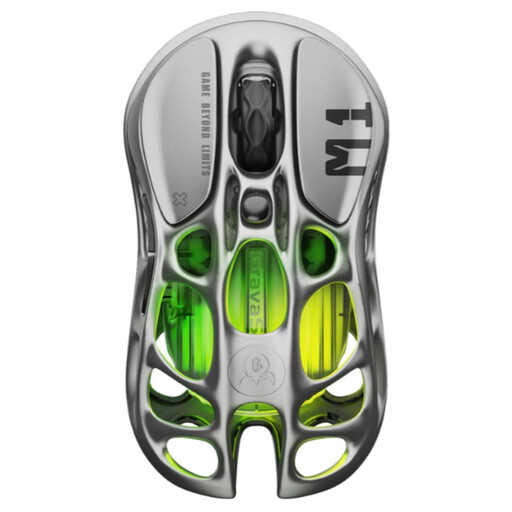
Why this choice suits this profile: it brings together the essential features in a single mouse: triple connectivity, PAW3395 sensor, 5 programmable buttons and RGB lighting.
The spec sheet clearly distinguishes the included 1K receiver from the 4K receiver sold separately. This lets you anticipate the real cost of your setup.
Claimed weight of 88g, magnesium alloy chassis, five customisable buttons and included USB-C cable.
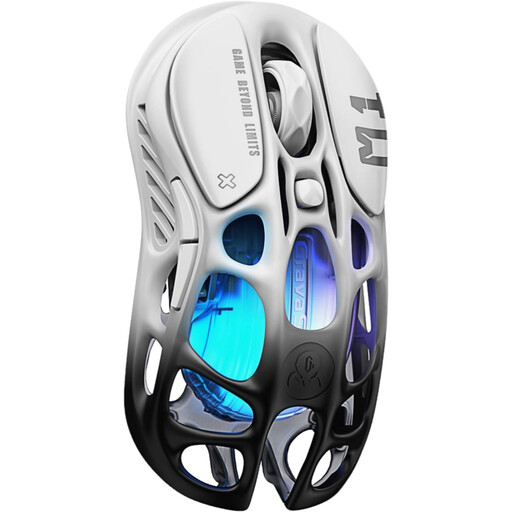
Why this choice suits this profile: this finish is aimed at users who want to combine the advertised performance with a distinctive look in a well-appointed gaming setup.
The spec sheet states that 4KHz mode depends on an optional receiver. Bluetooth, 2.4GHz and wired modes remain available.
PAW3395 sensor rated at 26,000 DPI, polling rate up to 4,000Hz with the compatible accessory and five GLOWSYNC RGB modes.
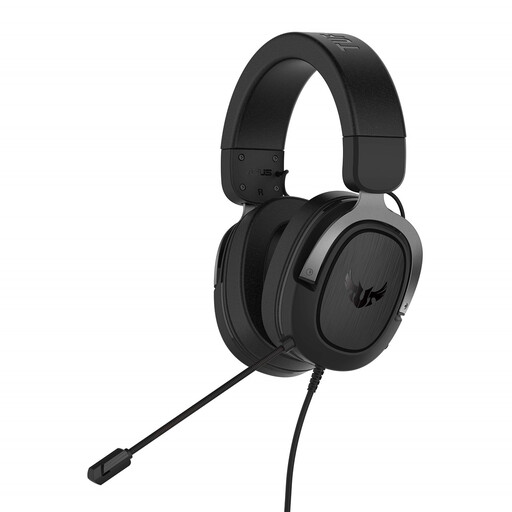
Why this choice suits this profile: this wired headset can complement an intensive gaming setup where the mouse is chosen for its connection freedom and customisation options.
Its 3.5mm jack connection doesn’t rely on a battery. This avoids adding a battery life constraint to equipment used for long hours.
Wired connection, detachable microphone, aluminium construction and claimed compatibility with PCs, consoles and mobile devices.
To keep your wireless gaming mouse in good condition, regularly clean the skates and shell with a dry cloth. The open-frame design requires extra attention around the openings. Avoid liquids and don’t leave the mouse in a car, near a radiator or behind a window in direct sunlight.
The 400mAh lithium battery recharges using the supplied cable. The spec sheet recommends avoiding third-party fast chargers, which could damage the charging circuit. If you’re not using the mouse for a long period, set the switch to “OFF”.
Before you finalise your basket, also remember to check the delivery terms, the applicable warranty and the information about the responsible party established in France. These factors matter just as much as the technical specifications to ensure a purchase that meets European consumer expectations.
We’ve put together a comprehensive, real-time updated list of products that fully meet these demanding selection criteria and European safety regulations.
No. The spec sheet indicates that a 1K receiver is supplied, while the 4K receiver needed to achieve a 4,000Hz polling rate is sold separately. The mouse remains usable via Bluetooth, standard 2.4GHz or with the USB-C cable.
Yes. It supports Bluetooth, 2.4GHz wireless and wired mode. Bluetooth is particularly convenient on a laptop that already has this feature. For USB-A compatible devices, the USB receiver can be used with the supplied extender.
Turn the mouse off when it won’t be used for a long period, charge it with the supplied cable and avoid non-recommended fast chargers. Also keep the device away from heat and liquids.