
Livraison le jour même ou le lendemain

Qualité garantie

Débloquez vos offres de bienvenue: Livraison GRATUITE | Jusqu'à -80 % | 30 jours d'essai gratuits à JoyPlus
Téléchargez l'application
The laptop is now the centerpiece of many setups, whether for gaming or creative work. To unlock its full potential on a desk, a good stand is essential. But a simple riser is no longer enough. A gaming laptop stand with a USB-C hub promises to transform your portable machine into a full-fledged desktop workstation. The only problem: the market is flooded with marketing promises that too often lead to disappointing purchases.
Before you invest, it's crucial to know how to avoid the most common pitfalls. Make the wrong choice, and you're in for a rude awakening: ports that don't deliver on their promises, anemic charging, or even overheating of your precious devices. Here's how to identify the features that truly make a difference.
On paper, many products boast impressive spec sheets. In practice, they hide limitations that only reveal themselves with use.
To make the right choice, focus on these three technical pillars. They will determine the performance and longevity of your setup.
The devil is in the details. Rather than just counting ports, check their standards. For a seamless experience, your gaming laptop docking station must offer:
This is a non-negotiable criterion. To properly power a gaming laptop and its peripherals, the hub must be able to handle and redistribute high wattage.
A good stand should improve your comfort and protect your hardware.
Every user has different needs, and for every need, there's a solution. Here are a few options designed for specific profiles, always keeping our performance and quality criteria in mind.
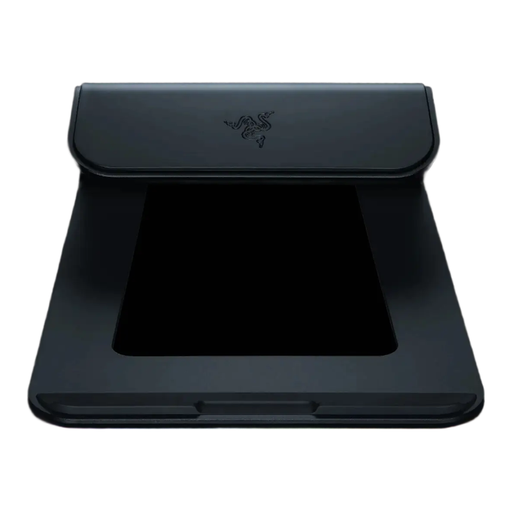
Why it's a great choice: The ideal solution for the gamer or creator with a Razer (or compatible) laptop who wants an all-in-one that centralises connectivity, charging, and RGB lighting in a premium design, perfectly integrated into their ecosystem.
This stand integrates a complete USB-C hub with an HDMI 2.0 (4K@60 Hz) output and an 80 W power output, allowing it to avoid the pitfalls of limited connectivity and anemic charging.
Robust anodised aluminium construction, an ergonomic 18° angle, and Razer Chroma RGB lighting integration for advanced customisation.
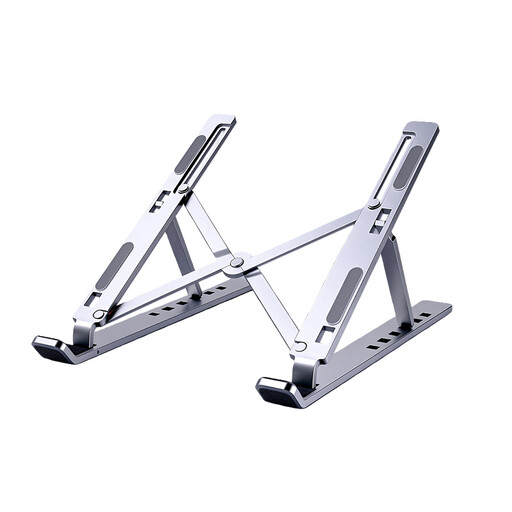
Why it's a great choice: Perfect for the user who prioritises ergonomics and a minimalist design. They likely already own a docking station and are simply looking for a stable, well-finished, and effective riser for their laptop.
This product doesn't pretend to be a hub. It focuses on a single mission: to elevate the PC ergonomically. It thus avoids the classic trap of the "all-in-one" product that compromises on all its functions.
A lightweight and portable aluminium design with adjustable height for tailored postural comfort. Its open structure ensures excellent ventilation.

Why it's a great choice: For those who want to tidy up their workspace with a simple and affordable solution for storing pens, cables, and small accessories, before upgrading to a full docking station.
This product makes no technological promises. It's an organiser, pure and simple, that tackles a fundamental problem: clutter. This avoids the disappointment of an electronic gadget that doesn't deliver on its promises.
A very affordable multi-compartment storage solution. Its sturdy metal construction and non-slip pads ensure stability and durability.
We have compiled a complete and up-to-date selection of products that meet our strict selection criteria and current safety standards.
A quality stand from a reputable brand, used with the proper charger and cables, poses no risk. The danger mainly comes from uncertified chargers or cables, which can cause overheating or power surges. For example, with the Razer Laptop Stand Chroma V2, it is strongly recommended to use a certified 100?W PD charger and the provided cable to ensure a stable and secure power supply.
Yes, and this is a crucial point. The stand with a hub doesn't create power; it only passes it through. You must connect your own USB-C Power Delivery wall charger (usually sold separately) to the hub's power input port. For optimal performance with a gaming laptop, a charger of at least 100?W is highly recommended.
A fixed angle, like the 18° on the Razer stand, is often the result of studies aiming to find the best compromise between good screen height and comfortable access to the built-in keyboard. However, ergonomics is a personal matter. For prolonged use, an external keyboard and mouse are always recommended. The laptop screen then serves as a primary or secondary monitor, ideally positioned at eye level.