
Livraison le jour même ou le lendemain

Qualité garantie

Débloquez vos offres de bienvenue: Livraison GRATUITE | Jusqu'à -80 % | 30 jours d'essai gratuits à JoyPlus
Téléchargez l'application
Record-breaking sleekness and power, but a distinct lack of ports: this is the great paradox of modern laptops. If juggling adapters to connect your two monitors, your hard drive, and your Ethernet cable has become a daily routine, you're not alone. A desk overrun with cables is the worst enemy of focus, whether you're working from home or in the office.
The solution? A dual monitor USB-C docking station. This accessory transforms a single USB-C port into a true command center for your workspace. Connect all your peripherals, charge your machine, and drive multiple monitors simultaneously—all with a single cable. This guide is here to help you decode the spec sheets and find the perfect model for your needs.
Before diving into our top picks, let's review the key points to check to ensure you make the right choice. The best option will primarily depend on your equipment and your workflow.
This is the number one criterion: the ability to display a different image on each external screen ("extended" mode). This feature depends on both the dock's technology and your operating system.
A good docking station isn't just for displays. It's also the power core of your desk, capable of charging your machine and transferring your data at high speed.
Display quality has a direct impact on your comfort and productivity. Today, a 4K 60Hz USB-C hub is the standard to aim for in a professional setting. This 60 Hz refresh rate ensures perfect fluidity in all situations: browsing, creative software, video playback... Steer clear of models limited to 30 Hz: the choppy display quickly becomes unbearable and tiring on the eyes.
Our editorial team has scoured the market to bring you a selection of three standout models, each catering to different needs and budgets.
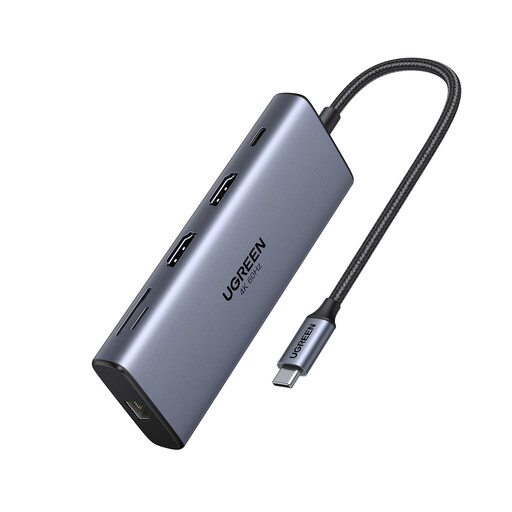
Why It Stands Out
This UGREEN USB-C dock is a true powerhouse. Its main advantage: it supports dual 4K at 60 Hz displays on both Windows and macOS, a major plus for MacBook Pro docking station users. Add to that 10 Gbps data ports, and you have a work tool with exemplary responsiveness.
Advantages
Who is it for??
Content creators (photographers, videographers) and demanding professionals, on Mac or PC, who refuse to compromise on display fluidity and transfer speeds.
See the UGREEN 10-in-1 Product
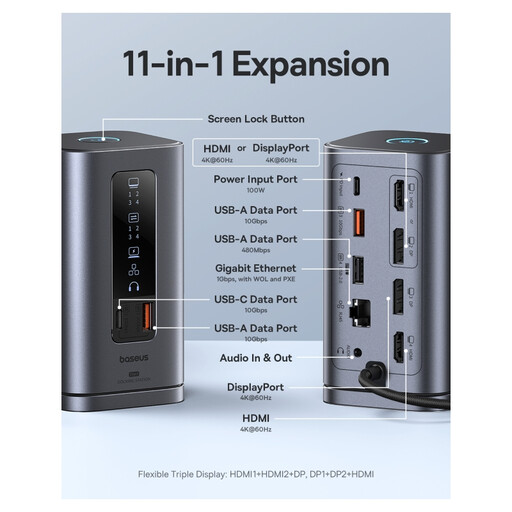
Why It Stands Out
The Baseus station is aimed at Windows users who want to think big. Very big. With its two HDMI ports and one VGA port, it can drive up to three external displays in extended mode (thanks to MST!). It's enough to turn the most modest ultrabook into a true command center.
Advantages
Who is it for??
Multitasking pros on Windows (developers, traders, analysts...) for whom three screens are better than one, and who need ultra-comprehensive connectivity for their workflow.
See the Baseus 11-in-1 Product
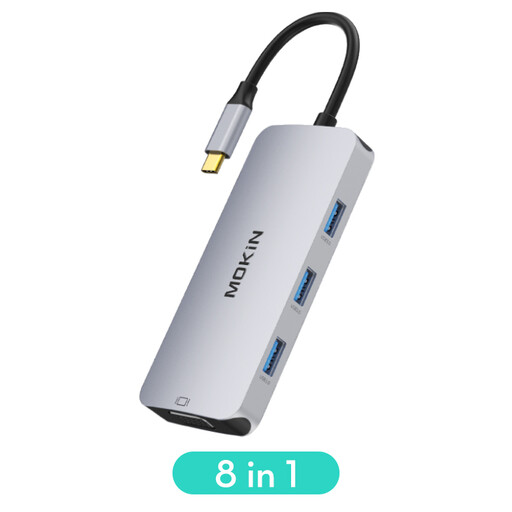
Why It Stands Out
This USB-C hub from MOKiN is all about versatility and a competitive price. Its key feature: it includes both an HDMI port for modern displays and a VGA port for older ones. It's the perfect nomadic USB-C multiport adapter, ready to tackle any conference room.
Advantages
Who is it for??
Students, mobile workers, and anyone who needs a "Swiss Army knife" adapter capable of connecting to any display or projector, whether new or old.
None of these models check all your boxes? Don't worry. Our catalog is filled with other solutions, from ultra-compact hubs to powerhouse docking stations. Take a look at our complete selection to find the perfect match.
Discover All Our USB Accessories
Although the terms are often used interchangeably, there is a subtle difference. The docking station (or dock) is the more stationary and comprehensive solution: more ports, multiple video outputs, an Ethernet port, powerful charging... The USB-C hub, on the other hand, is more compact and portable. It focuses on adding a few essential ports (USB, card readers) and sometimes a single video output.
No, not if you choose a quality model and use it correctly. Power Delivery (PD) technology is a smart standard: the dock, PC, and charger "negotiate" with each other to determine the ideal charging power. Pro tip: always plug your laptop's original charger into the dock's power input port for maximum safety.
This is the crucial question! To send a video signal, your USB-C port must support DisplayPort Alternate Mode (or DP Alt Mode). This is always the case for Thunderbolt 3 or Thunderbolt 4 ports. To be certain, you have two options: scour your machine's spec sheet, or look for a small logo next to the port. A lightning bolt (Thunderbolt) or the initials "DP" are a good sign. Without one of these, your port is likely only for charging and data transfer, not for video output.