
Livraison le jour même ou le lendemain

Qualité garantie

Débloquez vos offres de bienvenue: Livraison GRATUITE | Jusqu'à -80 % | 30 jours d'essai gratuits à JoyPlus
Téléchargez l'application
Modern laptops, both MacBooks and PCs, are in a race for thinness and portability… often at the expense of connectivity. If you've ever had to unplug your external monitor to copy a file from a USB drive, all while watching your battery drain at an alarming rate, you know the frustration.
The USB-C multiport adapter, also known as a hub or USB-C dock, is the perfect solution to unlock your machine's potential. It transforms a single port into a true command centre, ready to connect all your peripherals at once. This guide is here to help you cut through the noise and find the perfect model for your needs, whether you're a mobile professional, a creative, or a student.
To make the right choice, the first step is simple: make a detailed list of your needs. Because no, not all adapters are created equal, and their spec sheets can quickly become overwhelming. Let's review the key points to check before you pull out your credit card.
One of the flagship features of a USB-C hub is the ability to connect one or more external displays.
Beyond video, a good adapter must be able to accommodate all your other accessories.
A good adapter should never force you to choose between connecting your peripherals and charging your laptop. The Power Delivery (PD) feature allows you to charge your laptop through the adapter itself. Simply plug your USB-C charger into the hub's PD port. Be sure to check the maximum power supported (in Watts) to ensure it's sufficient for your machine, especially if you need to power a MacBook Pro docking station or a gaming laptop.
Crucially, check your computer's compatibility. Its USB-C port must support DisplayPort Alternate Mode (or DP Alt Mode) to transmit a video signal. This is the case for most Thunderbolt 3, Thunderbolt 4, and USB-C ports on recent machines, but a quick visit to the manufacturer's website is essential to be sure.
To guide you, our editors have selected three models that caught our eye. Each one is tailored to a specific user profile.
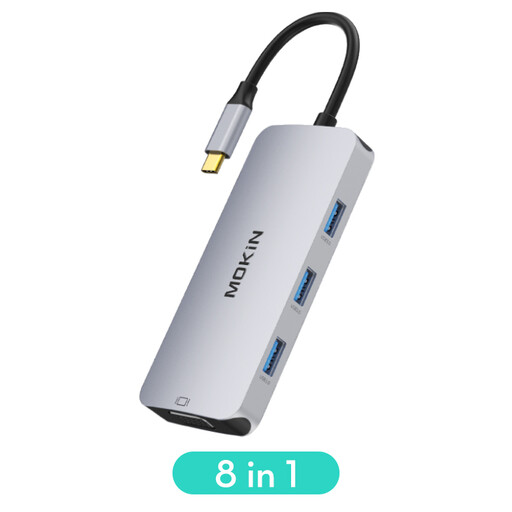
What sets it apart A true Swiss Army knife of connectivity, this MOKiN model is an ultra-versatile solution. Its standout feature?? It includes both a 4K HDMI port and a 1080p VGA port, making it incredibly practical for mobile professionals who juggle between displays and projectors from different generations.
Advantages
Who is it for?? Mobile professionals and students who need a flexible solution to connect their laptop to both modern (HDMI) and older (VGA) displays, while retaining ports for their peripherals and charging.
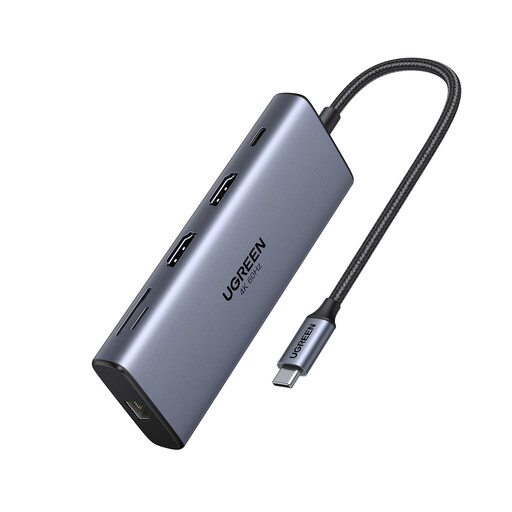
What sets it apart This UGREEN hub steps up its game, targeting demanding users in search of cutting-edge performance. It stands out with its ability to drive two 4K at 60?Hz displays simultaneously (on compatible devices) and its ultra-fast data ports, making it a true compact docking station.
Advantages
Who is it for?? Creatives (video editors, graphic designers), developers, and power users who want to build a high-performance setup around their MacBook Pro or PC, with multiple 4K monitors and ultra-fast file transfers.
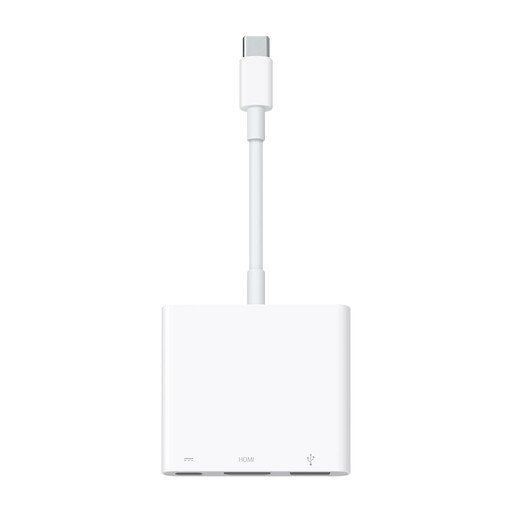
What sets it apart For those deep in the Apple ecosystem who value simplicity and seamless integration, the official adapter is the logical choice. It gets straight to the point: connecting a display, a standard USB peripheral, and handling charging, all with the flawless compatibility and finish true to the brand's standards.
Advantages
Who is it for?? Users of Apple devices (MacBook, iPad Pro, iPhone 15) looking for a simple, reliable, and official solution for their basic connectivity needs (display, charging, one USB-A port) without the clutter of superfluous ports.
None of these models check all your boxes?? Looking for a more specific port configuration? Explore our full catalogue to find the perfect fit.
Discover Our Full Range of USB HDMI Adapters
1. What's the difference between a USB-C hub and a USB-C dock (docking station)?? The line can be blurry, but there is a real difference. A USB-C hub is generally more compact, portable, and powered directly by the laptop. A USB-C docking station (or dock) is more substantial and designed for a fixed workstation. It often has its own power supply, allowing it to offer more ports and higher charging power.
2. Can I use any multiport adapter with my USB-C laptop?? Absolutely not, and this is a crucial point. For video output, your computer's USB-C port must support DisplayPort Alternate Mode. Most recent machines do, but it's wise to check your device's spec sheet before buying. Likewise, for charging through the adapter, make sure the power (in watts) of the PD port matches your computer's requirements.
3. Is it possible to connect two monitors with a USB-C adapter?? Yes, it's entirely possible with a dual HDMI USB-C adapter or one with multiple video outputs (e.g., HDMI + DisplayPort). However, be aware that the result depends on your operating system. Windows natively supports Multi-Stream Transport (MST) technology, which allows you to display a different image on each monitor (extended mode). On macOS, however, most standard hubs will simply duplicate the display on the external screens (mirror mode), with the exception of Macs equipped with M1/M2/M3 Pro, Max, or Ultra chips, which handle this scenario better.