
Livraison le jour même ou le lendemain

Qualité garantie

Débloquez vos offres de bienvenue: Livraison GRATUITE | Jusqu'à -80 % | 30 jours d'essai gratuits à JoyPlus
Téléchargez l'application
Modern laptops, like MacBook Pro/Air and the latest PCs, often sacrifice connectivity for a slim profile. If you've ever found yourself short on ports to connect an external display, a hard drive, or even a simple USB stick, don't worry?— it's a common problem. The USB-C port, as versatile as it is, often needs a companion to unlock its full potential.
This guide is here to help you navigate the jungle of USB-C to HDMI adapters. We'll break down the essential technical specs and present our selection of the best products to help you find the perfect solution for your needs, whether for remote work, studying, or content creation.
To make the right choice, here are the key criteria to consider before you buy.
If your only goal is to connect an external monitor, a simple USB-C to 4K HDMI adapter will do the trick. But for most of us, a USB-C multiport adapter or a USB-C hub quickly becomes essential. Take stock of the peripherals you use every day:
Video output is a key factor. Today, most adapters support 4K resolution. Pay close attention to the refresh rate?— 60?Hz provides a much smoother image than 30?Hz, a significant improvement for video or gaming.
If you're planning a multi-monitor setup, you'll need a dual-display adapter. However, be aware of the limitations of certain machines. This is particularly true for MacBooks equipped with the standard Apple M1, M2, or M3 chips, which natively support only one external display via their Thunderbolt/USB-C ports. This restriction does not apply to models with M Pro, M Max, or Ultra chips.
Your laptop's USB-C port is also used for charging. This is where the Power Delivery (PD) feature, also known as pass-through charging, becomes extremely useful. A compatible hub has a dedicated USB-C port where you plug in your standard charger. This way, a single USB-C port on your machine can both charge your computer and power all the peripherals connected to the hub. Be sure to check the power output (in watts) to ensure it's sufficient for your laptop.
Here is our selection of models that cater to different needs and budgets.
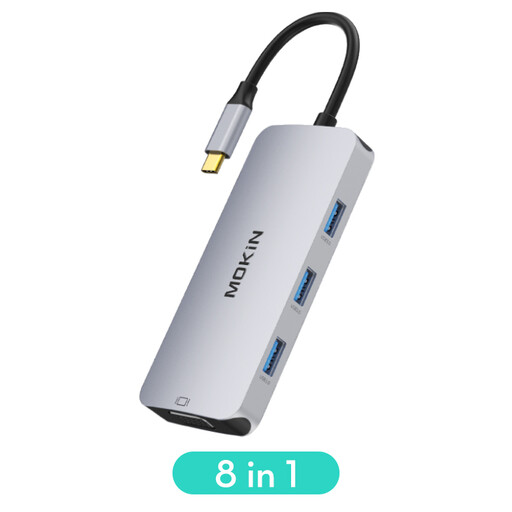
Why it stands out?: Its versatility is its greatest strength. By combining a modern HDMI output with an older VGA output, it ensures maximum compatibility with most monitors and projectors.
Pros?:
Who is it for???: The mobile user or versatile professional who moves between the office, home, and meeting rooms. It's perfect for those who need to connect to any display without a second thought, while also having access to USB ports and card readers.
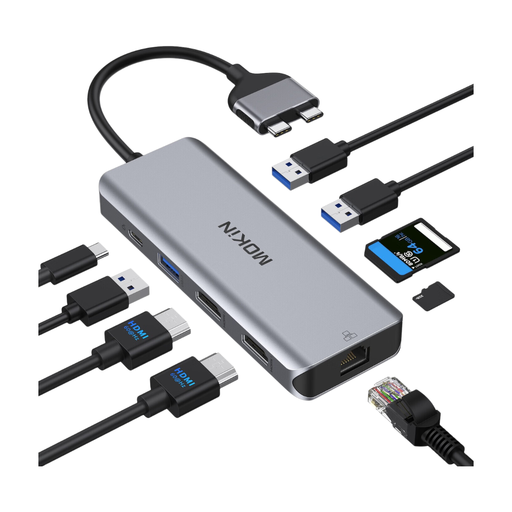
Why it stands out?: Specifically designed for MacBook Pro and Air models with two adjacent USB-C ports, this hub transforms your machine into a true workstation, capable of driving two external displays in extended mode.
Pros?:
Who is it for???: For pros and creatives on MacBook Pro/Air (compatible models) who demand a high-performance, multi-screen setup and uncompromising connectivity, including an Ethernet port.
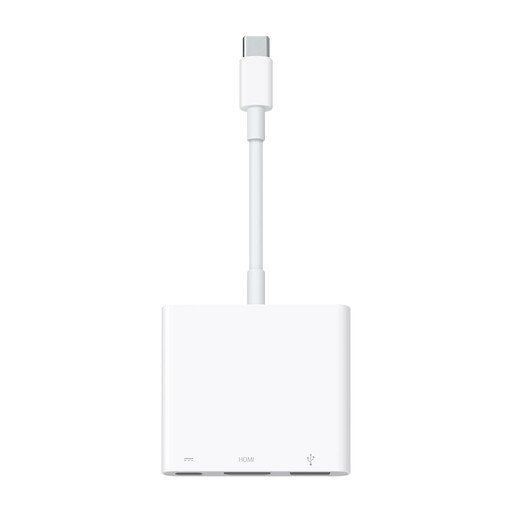
Why it stands out?: This is Apple's official solution. Minimalist and reliable, it integrates perfectly into the Apple ecosystem.
Pros?:
Who is it for???: For the Apple ecosystem enthusiast who wants a simple, reliable solution for connecting a 4K 60?Hz display and doesn't need extra features like a card reader or Ethernet port.
Every user has specific connectivity needs. If our selection doesn't perfectly match your requirements, know that there is a vast array of other configurations available. You can explore our full range to discover other different USB connectors and find the hub that will fit perfectly into your setup.
It all depends on your MacBook Pro model and your use case. For basic use (one monitor and one USB peripheral), Apple's Digital AV Multiport Adapter is a safe and effective choice. For a complete desktop setup with multiple displays, a docking station like the MOKiN 9-in-2 model is far more suitable. Just remember to check compatibility with your Mac's chip!
Yes, as long as both your adapter and your computer support it. You need a dual-display adapter equipped with two video outputs (e.g., two HDMI ports). Generally, Windows PCs with Thunderbolt or USB-C ports that support DisplayPort Alternate Mode can handle this without issue. For Macs, only models with M Pro, M Max, M Ultra, or Intel processors can drive two external displays in extended mode through a single hub.
In theory, no. A USB-C hub is not supposed to interfere with your Wi-Fi connection. In practice, electromagnetic interference can sometimes occur, especially with low-quality USB 3.0 cables or peripherals. If you notice your Wi-Fi becomes unstable when the hub is connected, the most reliable solution is to opt for a USB-C hub with an Ethernet port and use a wired connection, which guarantees speed and stability.