
Livraison le jour même ou le lendemain

Qualité garantie

Débloquez vos offres de bienvenue: Livraison GRATUITE | Jusqu'à -80 % | 30 jours d'essai gratuits à JoyPlus
Téléchargez l'application
Here at the editorial desk, a question constantly comes up from iPad owners: which stylus should I choose? The market is flooded with options, but a poor choice can quickly turn a promising accessory into a costly disappointment. To avoid falling into this trap, let's review the most common mistakes.
The first, and most common, is buying a stylus that's incompatible with your iPad model. The second is opting for a low-cost alternative that lacks the essential precision features for drawing or annotating. Even if a stylus seems functional at first, the absence of pressure sensitivity or palm rejection will quickly make it frustrating for any remotely demanding use. Finally, many people forget that the writing feel depends not only on the stylus but also on the screen's surface.
This guide is here to help you see things more clearly and focus on the criteria that truly matter to make the right choice.
To avoid disappointment, focus on three fundamental aspects. These criteria will ensure that the stylus you choose meets your expectations, whether for note-taking, illustration, or design.
This is the very first and most important check to perform. A stylus, no matter how advanced, is useless if it doesn't work with your tablet. The Apple Pencil Pro's compatibility, for example, is specifically guaranteed with the latest models like the iPad Pro (M4) and the iPad Air (M2).
Settings > General > About on your iPad to find your model name.If your goal is drawing on an iPad or taking notes with precision, certain features are simply indispensable.
The new features of the Apple Pencil Pro go even further with gestures like the squeeze to open tool palettes, barrel roll to change the brush orientation, and haptic feedback that confirms actions with light vibrations.
How the stylus charges and integrates into your daily routine is a major convenience factor.
Rather than an exhaustive list, here are our targeted recommendations for different user profiles, based on performance and compatibility criteria.
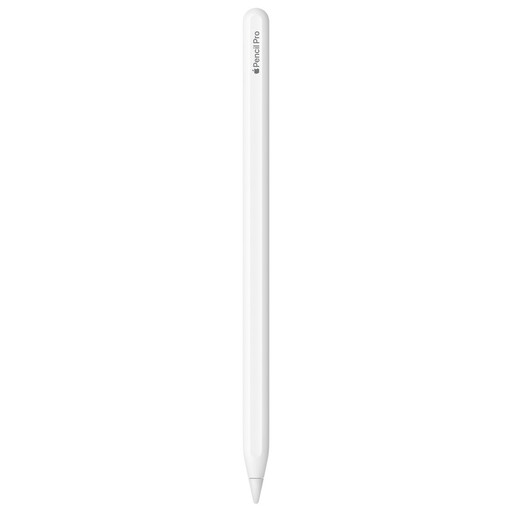
Why we chose it: For illustrators, graphic artists, and designers using an iPad Pro (M4) or Air (M2), this tool offers an unparalleled level of control and interaction. It transforms the tablet into a true creative workstation.
It guarantees perfect compatibility and access to all the advanced features (squeeze, barrel roll, haptic feedback) designed for the latest iPadOS, eliminating any technical frustration.
The advanced gestures and haptic feedback streamline workflow and make it more intuitive. The built-in Find My feature is a real bonus for never misplacing it.
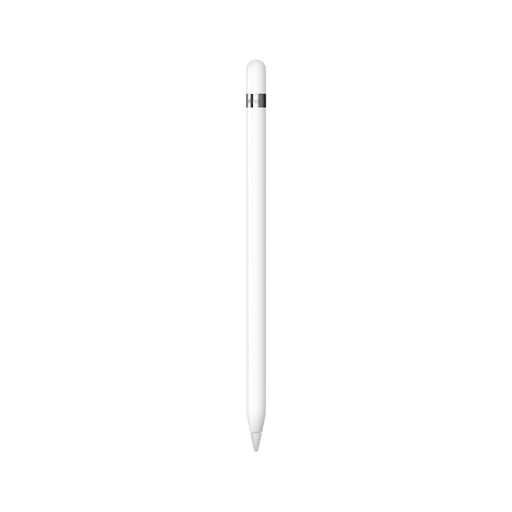
Why we chose it: Perfect for students and professionals using compatible iPad models (6th to 10th gen, iPad Air 3rd gen, iPad mini 5th gen) for note-taking, PDF annotation, and occasional drawing.
As an official Apple product, it ensures flawless compatibility and reliability on supported devices, a far cry from the random performance of low-end alternatives.
It offers Apple's signature precision and low latency at a more accessible price point. The included USB-C adapter ensures compatibility with the 10th-generation iPad.
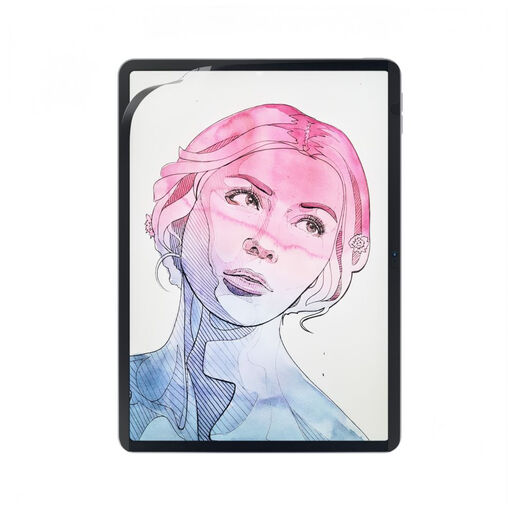
Why we chose it: For anyone who finds the iPad's glass screen too slippery for writing or drawing. This accessory is the essential companion for regaining a natural feel and better stroke control.
It solves the problem of a slippery surface, a flaw often discovered only after buying the stylus. Its magnetic attachment allows it to be applied and removed at will, without bubbles or residue.
Its "paper-like" texture provides subtle resistance that significantly improves stroke precision. The matte finish is also an excellent way to reduce glare and fingerprints.
Discover our complete selection of tablet accessories, all tested and approved by our editors based on strict performance and safety criteria.
1. How do I check if the Apple Pencil Pro is compatible with my iPad? The easiest way is to check Apple's official website or the stylus's product page. The Apple Pencil Pro is designed for iPad Pro models with the M4 chip and iPad Air models with the M2 chip. To identify your iPad model, go to Settings > General > About.
2. Is the Apple Pencil Pro worth its price compared to previous models? For creative professionals, the answer is a resounding yes. The new features like squeeze, barrel roll, and haptic feedback represent a real time-saver and precision boost in apps like Procreate or ZBrush. For use focused on note-taking or simple drawing, a compatible older model (Apple Pencil 2 or 1st generation) will be more than sufficient.
3. Is a screen protector really useful for drawing on an iPad? It's not mandatory, but it is highly recommended. On one hand, a screen protector (especially a matte or "paper-like" texture) provides slight resistance that mimics the feel of paper, improving stroke control. On the other hand, it protects your screen from the micro-scratches that can appear over time, even with the plastic tips of styluses.